Quick answer
Most Fire TV Sticks (Fire OS models) let you sideload an IPTV player app by enabling "Apps from Unknown Sources" and installing it through the Downloader app, then entering your provider's M3U or Xtream Codes login. Newer Fire TV Stick 4K Select and Fire TV Stick HD (2026) models run Amazon's new Vega OS, which blocks sideloading entirely — on those, you're limited to apps already in the Amazon Appstore.
Tested on: [model] · firmware [x] · [date]

Watch: How to Allow Apps From Unknown Sources on Fire TV Stick
Setting up IPTV on a Firestick depends entirely on which generation you have. Amazon's newest sticks run a completely different, Linux-based operating system called Vega OS, and it doesn't allow installing apps outside the Amazon Appstore at all — no Downloader, no sideloading, no exceptions. Older and current mid/high-tier sticks still run Android-based Fire OS, where sideloading works the way it always has. Check which one you have before following any steps below.
Compatibility: Fire OS vs. Vega OS
In 2026, "Firestick" no longer means one consistent platform. Amazon has started shipping newer stick models on Vega OS, a Linux-based system built in-house, replacing the Android-based Fire OS that every previous generation used. This is the single most important thing to check before following any generic Firestick IPTV guide, since a large share of older guides (and some current ones) still assume every Firestick supports sideloading — that's no longer true.
| Model | OS | Sideloading (Downloader/unknown sources) | Notes |
|---|---|---|---|
| Fire TV Stick 4K Select | Vega OS | Not supported | Amazon's first Vega OS stick; apps only from the Amazon Appstore. |
| Fire TV Stick HD (2026 model) | Vega OS | Not supported | Replaces the older Android-based entry-level Fire TV Stick. |
| Fire TV Stick 4K Plus | Fire OS (Android-based) | Supported | Sideloading works the standard way via Downloader. |
| Fire TV Stick 4K Max | Fire OS (Android-based) | Supported | Sideloading works the standard way via Downloader. |
| Fire TV Cube | Fire OS (Android-based) | Supported | Sideloading works the standard way via Downloader. |
| Older Fire TV Stick / Stick Lite (pre-2026) | Fire OS (Android-based) | Supported | Still fully sideloading-capable if you already own one. |
What You Need
- A Fire TV Stick (any generation) connected to your TV and Wi-Fi or Ethernet
- A stable internet connection — wired or 5 GHz Wi-Fi is strongly preferred over 2.4 GHz for live streaming
- Your IPTV provider's M3U playlist URL, or an Xtream Codes username, password, and server address
- If you're on a Fire OS device: a few minutes to enable Downloader and sideload a player app
Step 1: Check Which OS Your Firestick Runs
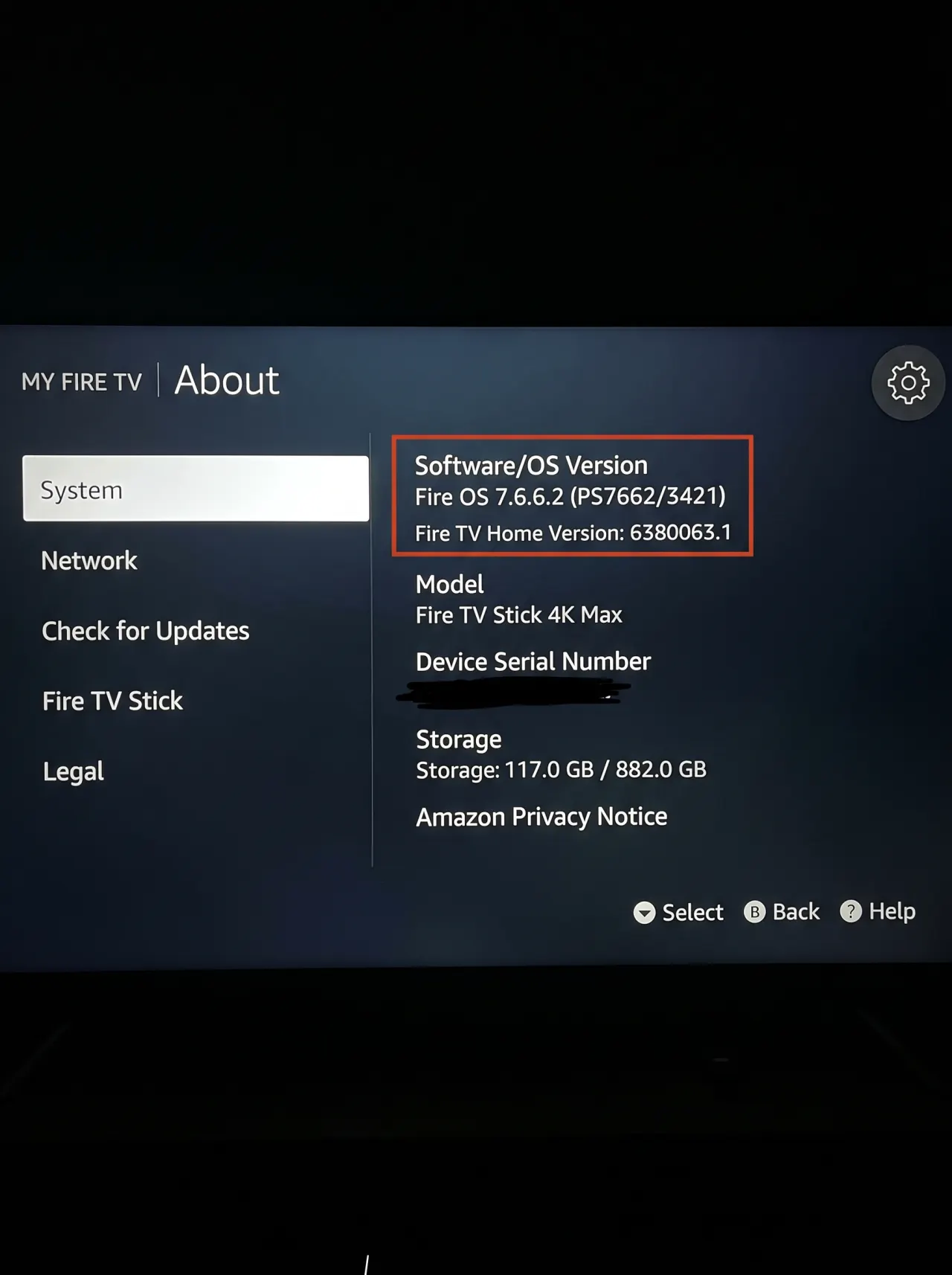
- From the Fire TV home screen, go to Settings > My Fire TV (or Device & Software) > About.
- Look at the software version line. Vega OS devices show a distinct "OS" version number; Fire OS devices show the traditional Fire OS version string.
- If you're unsure, check your exact model name against the compatibility table above — the Fire TV Stick 4K Select and the 2026 Fire TV Stick HD are the two current Vega OS models.
If You Have a Vega OS Device
Vega OS has no Developer Options menu, no "Apps from Unknown Sources" toggle, and no path for the Downloader app or ADB installs — this isn't a hidden setting to find, it's simply not part of the system. Your two realistic options are:
- Use an app available in the Amazon Appstore. Check the Amazon Appstore directly on your device for an IPTV player that supports M3U or Xtream Codes logins natively.
- Use a different device for IPTV. An older Fire OS-based stick (4K Plus, 4K Max, or Cube), an Android TV box, or a Smart TV with its own app store will give you the sideloading flexibility Vega OS doesn't offer. Our setup guide hub covers the other supported devices.
If your device is Vega OS, the sideloading steps below (Steps 2-3) will not work — skip to Step 4 once you've installed an Appstore-available player.
Step 2: Enable Installing Apps From Unknown Sources (Fire OS Only)
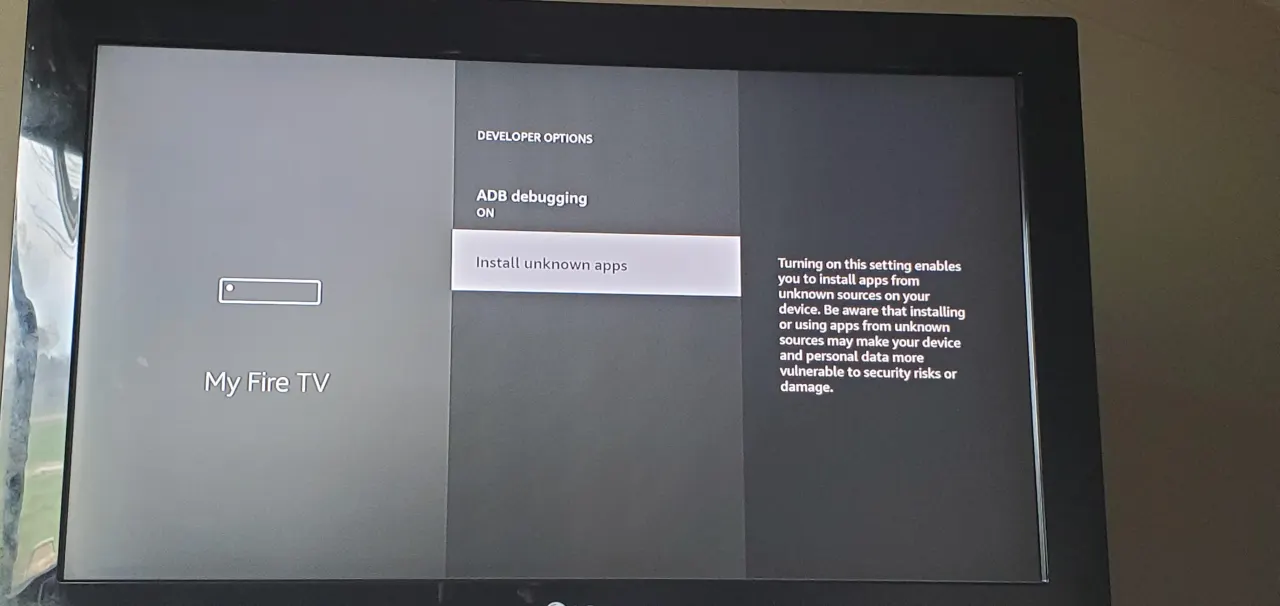
- Go to Settings > My Fire TV > Developer Options.
- If Developer Options isn't visible, go to Settings > My Fire TV > About, then click your Fire TV device name (or the build/serial number row) repeatedly until a message confirms Developer Options is now enabled.
- Inside Developer Options, turn on Apps from Unknown Sources and confirm the warning prompt.
Step 3: Install a Player App via Downloader
- From the Fire TV home screen, search the Amazon Appstore for Downloader and install it — this is an official Amazon Appstore app, not a sideloaded one.
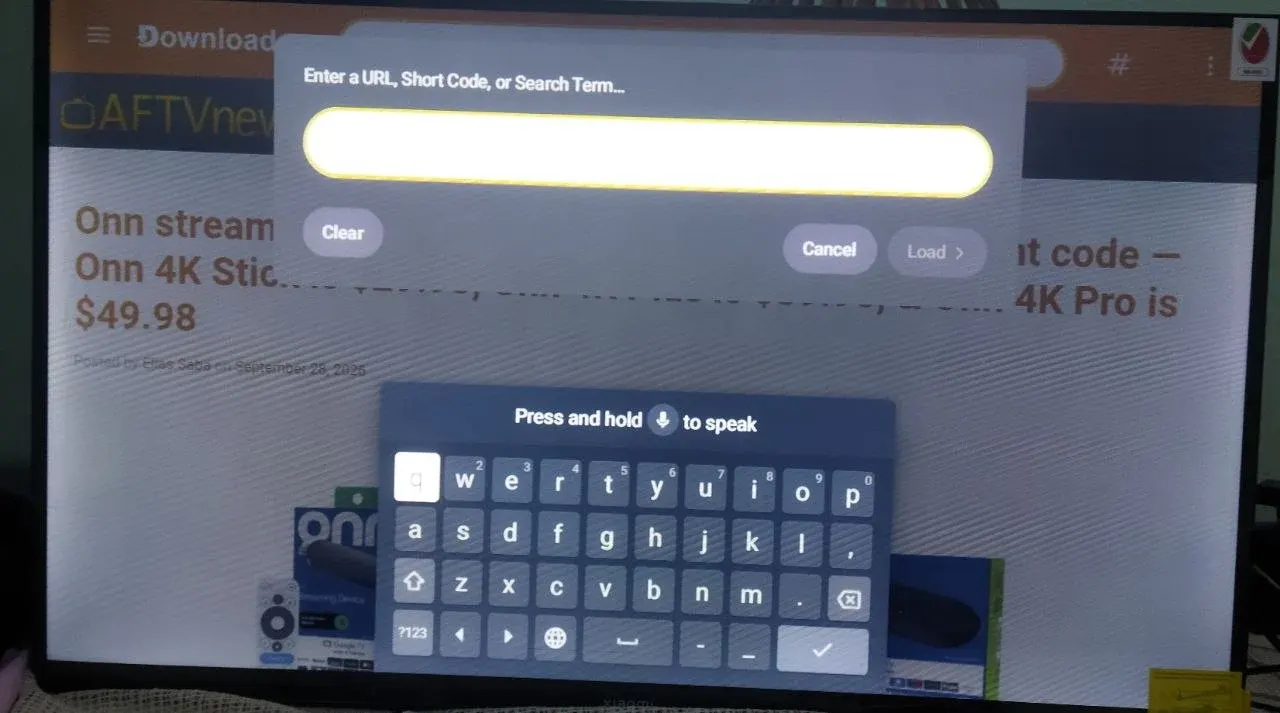
- Open Downloader and enter the official URL for the IPTV player app you want to install, from that app developer's own website. Do not use third-party APK mirror sites.
- Downloader will fetch and install the app automatically. Once finished, open it from your Fire TV apps list.
Stick to a player app's official developer website when entering a URL in Downloader — enter the official app URL from the developer's own site rather than a third-party mirror.
Need your login details first?
Request a free trial to get a working M3U/Xtream Codes login before you finish setup.
Step 4: Connect Your IPTV Subscription
- Open your installed player app.
- Choose the login method your provider gave you: either an M3U playlist URL, or Xtream Codes (username, password, and server/portal address).
- Enter the details exactly as provided — extra spaces or missing characters are a common cause of a playlist failing to load.
- Save and wait for the channel list and EPG (program guide) to populate; this can take a minute or two on the first load.
With GetTV.online, these details are sent after your subscription or free trial is activated.
Step 5: Optimize Playback
- Use 5 GHz Wi-Fi or Ethernet. A USB Ethernet adapter for your Fire TV Stick removes Wi-Fi variability entirely and is the single most reliable fix for buffering.
- Enable hardware decoding in your player app's settings if the option exists — it shifts video decoding to the Fire TV's dedicated hardware instead of software, reducing stutter on higher-bitrate streams.
- Clear storage space. Fire TV Sticks have limited onboard storage; go to Settings > Applications > Manage Installed Applications and remove unused apps if playback feels sluggish.
Troubleshooting
"App not installed" error in Downloader
This usually means a previous version of the app is still partially installed, or storage is low. Go to Settings > Applications > Manage Installed Applications, uninstall the existing version if present, clear some storage, and try the Downloader install again.
"Unknown sources" greyed out or missing
If Apps from Unknown Sources doesn't appear or won't toggle, confirm your device is actually running Fire OS and not Vega OS — this setting simply doesn't exist on Vega OS devices, and no amount of digging in the menus will surface it.
No channels / playlist not loading
Double-check the M3U URL or Xtream Codes details were entered with no extra spaces, line breaks, or typos. Confirm your internet connection is active, and try reloading the playlist from within the app's settings.
Buffering
Switch to a wired Ethernet adapter or move to 5 GHz Wi-Fi, close other devices streaming on the same network, and check if hardware decoding is enabled in your player app.
EPG empty or wrong time
Confirm your provider supplies a separate EPG URL and that it's entered correctly in the app. If times look off, check the app's timezone setting matches your actual location — some players default to UTC.
Using another device?
For a broader look at choosing a player app rather than just installing one, see our guide on what makes a good IPTV player for Fire Stick and Android. Our 40,000+ channel lineup works the same way once your player is connected. Request a free trial to get real login details and test this setup on your own Firestick, or check current plans.
FAQ
Can I install IPTV apps on any Firestick?
Not anymore. Fire OS-based sticks (4K Plus, 4K Max, Cube, and older models) support sideloading via Downloader. Newer Vega OS models (Fire TV Stick 4K Select, the 2026 Fire TV Stick HD) only allow apps from the Amazon Appstore.
How do I know if my Firestick runs Fire OS or Vega OS?
Check Settings > My Fire TV > About for the software version, or match your exact model name against the compatibility table in this guide.
What do I do if my Firestick doesn't support sideloading?
Look for an IPTV player already available in the Amazon Appstore, or use a different device (an older Fire OS stick, Android TV box, or Smart TV) that supports sideloading or has its own app store option.
Is sideloading an IPTV player app legal?
Sideloading itself is a standard Android/Fire OS feature and is legal. What matters is whether the IPTV service you connect the app to is properly licensed — the app is just the interface.
Do I need Ethernet for smooth IPTV playback?
Not strictly, but a wired connection or 5 GHz Wi-Fi is significantly more reliable than 2.4 GHz Wi-Fi for live streaming, especially during high-traffic viewing times.
Does GetTV.online work on Firestick?
Yes, on both Fire OS and Vega OS devices, using a compatible player app with the M3U or Xtream Codes details sent after activation. Request a free trial to test it on your specific model.