
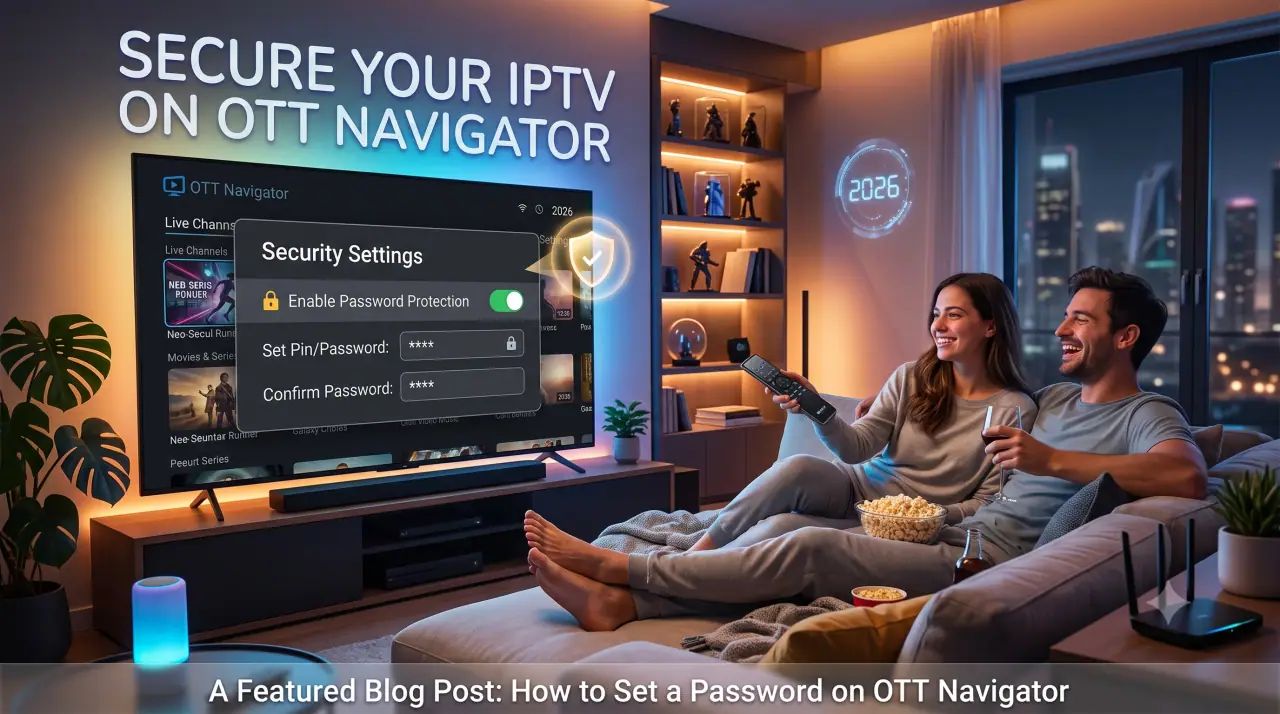
If you use OTT Navigator to watch your IPTV subscription, locking it with a password takes about a minute and stops anyone else on your device — kids, roommates, anyone borrowing the TV — from opening your live channels or changing your setup. Here's what the feature does, how to turn it on, and a few other habits worth adopting alongside it.
What is OTT Navigator?
OTT Navigator is a third-party IPTV player app for Android, Android TV, and Fire TV. It doesn't provide any channels or content itself — instead, you load it with the connection details (an M3U playlist or Xtream Codes login) from your IPTV provider, and it handles playback, an electronic program guide, and DVR-style recording. Many GetTV.online subscribers use it as one of several supported players, alongside our own setup guide for other devices.
Because the app itself doesn't require a login by default, anyone with access to your TV or box can open it and start watching — which is exactly what its password/PIN lock is meant to prevent.
Why password-protect your IPTV app
A password on OTT Navigator isn't about protecting the channels themselves — it's about controlling who can use your device and your subscription. A few concrete reasons it's worth the minute it takes:
- Prevent accidental changes. Kids or guests fiddling with the remote can't reconfigure your playlist or delete your recordings.
- Restrict content. A PIN lock keeps mature channels or on-demand content out of reach when you're not around to supervise.
- Protect your subscription. If your device is shared or your box is in a common area, a lock keeps your IPTV login from being casually reused or exposed.
How to set up password protection in OTT Navigator
The exact menu wording can vary slightly between OTT Navigator versions, but the general path is the same:
- Open OTT Navigator and go to Settings.
- Look for Parental control or Security in the settings list.
- Enable the PIN/password lock option.
- Set a PIN that isn't easy to guess — avoid obvious ones like 0000 or 1234.
- Confirm the PIN when prompted.
- If the app offers it, choose whether the lock applies to the whole app or just specific categories (e.g., adult content).
Once it's set, OTT Navigator will ask for the PIN before opening the app or the categories you've restricted, depending on how you configured it.
Other ways to keep your IPTV account secure
A device-level PIN is one layer. A few others worth pairing it with:
- Use a unique password for your IPTV provider account — not one reused from another service.
- Don't share your Xtream Codes or M3U login outside your household; most IPTV plans are licensed per user.
- Keep the app updated so you're not missing security fixes.
- Use a connection with built-in privacy protection where you can — GetTV.online plans include an integrated VPN, so you're not relying on the player app alone for privacy.
Using OTT Navigator with GetTV.online
If you're setting this up for a GetTV.online subscription, OTT Navigator is one of several apps that work well with our service on Android-based devices. For a walkthrough covering Smart TVs, Fire TV, and other players, see our setup guide, or request a free trial if you're still deciding on a provider and want to test compatibility with your device first.
FAQ
What is OTT Navigator?
OTT Navigator is a third-party IPTV player app for Android and Android TV. It plays live TV, VOD, and EPG data from an IPTV provider's M3U or Xtream Codes connection — it doesn't supply content on its own.
Why should I password-protect my IPTV player?
It stops other people using your device from opening the app, reconfiguring your playlist, or accessing content you'd rather restrict, and helps keep your subscription login from being casually exposed.
How do I set up password protection on OTT Navigator?
Open Settings, find Parental control or Security, enable the PIN/password lock, and set a PIN that isn't easy to guess. Menu labels vary slightly by app version.
Does OTT Navigator work with GetTV.online?
Yes — it's one of several apps compatible with a GetTV.online subscription on Android-based devices. See our setup guide for device-by-device instructions.